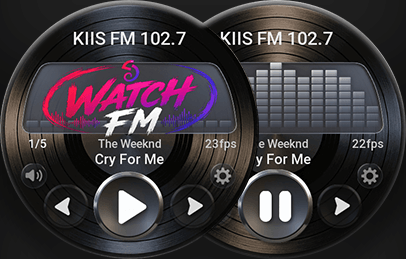
Today, we are launching a live-streaming radio app called WatchFM on many of our Amazfit smartwatches.
Until this very day, we have had multiple music players, but pretty much all of them required you to go the extra mile and pre-download the songs you’d like to listen to. It involved using the Zepp app beyond the simple mini app download and your phone’s WiFi access point, which didn’t always work; in short, it required a bit of a learning curve to get it right. Also, unlike YouTube/Amazon Music, you don’t need a subscription or any sort of account to enjoy music 24/7, whether you’re working out or preparing to sleep.
With WatchFM, you download the app from our app store, launch it, press PLAY, and that’s it. In a couple of seconds, you should start hearing music, which can last for hours, directly from the speaker of your watch or the attached BLE headphones.

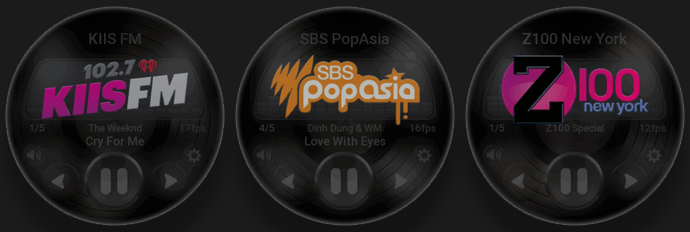
The app features a few of the TOP online radio stations around the world: SBS PopAsia (AU), iHeart’s KIIS FM 102.7 (LA), and Z100 (NY).
With audio streaming, you are no longer stuck with the songs you downloaded a year ago, and have no time or energy to replace them. You’ll always be listening to the newest hits around the world.
At the time of writing, the stations are featuring these and many more brilliant artists:
Although the main interface is simple to use, there are notable additional features worth explaining further.
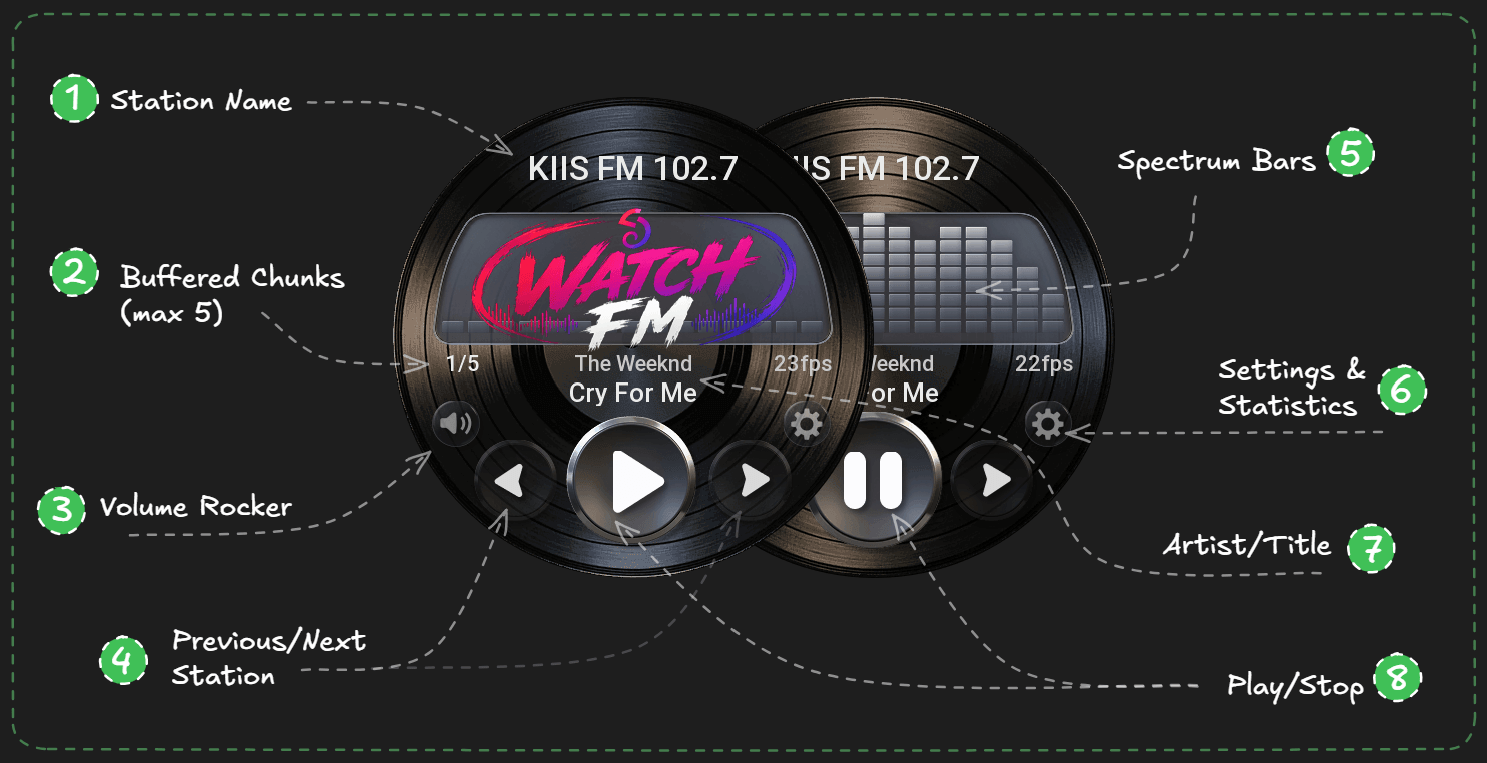
Shows an actively playing station
Shows how healthy your link is. The more, the better; up to 5 chunks. Each chunk means 1 (sbs) to 2 (iheart) minutes of buffered audio. With a 5/5 buffer, you can initiate a 5-10 minute bathroom break outside of your phone’s range
Allows you to change the music volume. There are four different ways of volume manipulation; we will look at them more closely, in a bit
Navigate between supported stations
The app features a real, non-gimmicky Music Spectrum Display. A unique feature you won’t find on any other radio streaming client, whether on Android/iOS or even Web; moreover, the low-powered RTOS watches.
Here you can change the app’s language, see your listening statistics, and more
Always know who and what you’re listening to. Even when it’s a stream.
Play and stop/pause the playback. bonus feature: hold this button for a second, and it will reset all the buffered chunks for the currently selected station. Keep this feature in mind as it might come in handy.
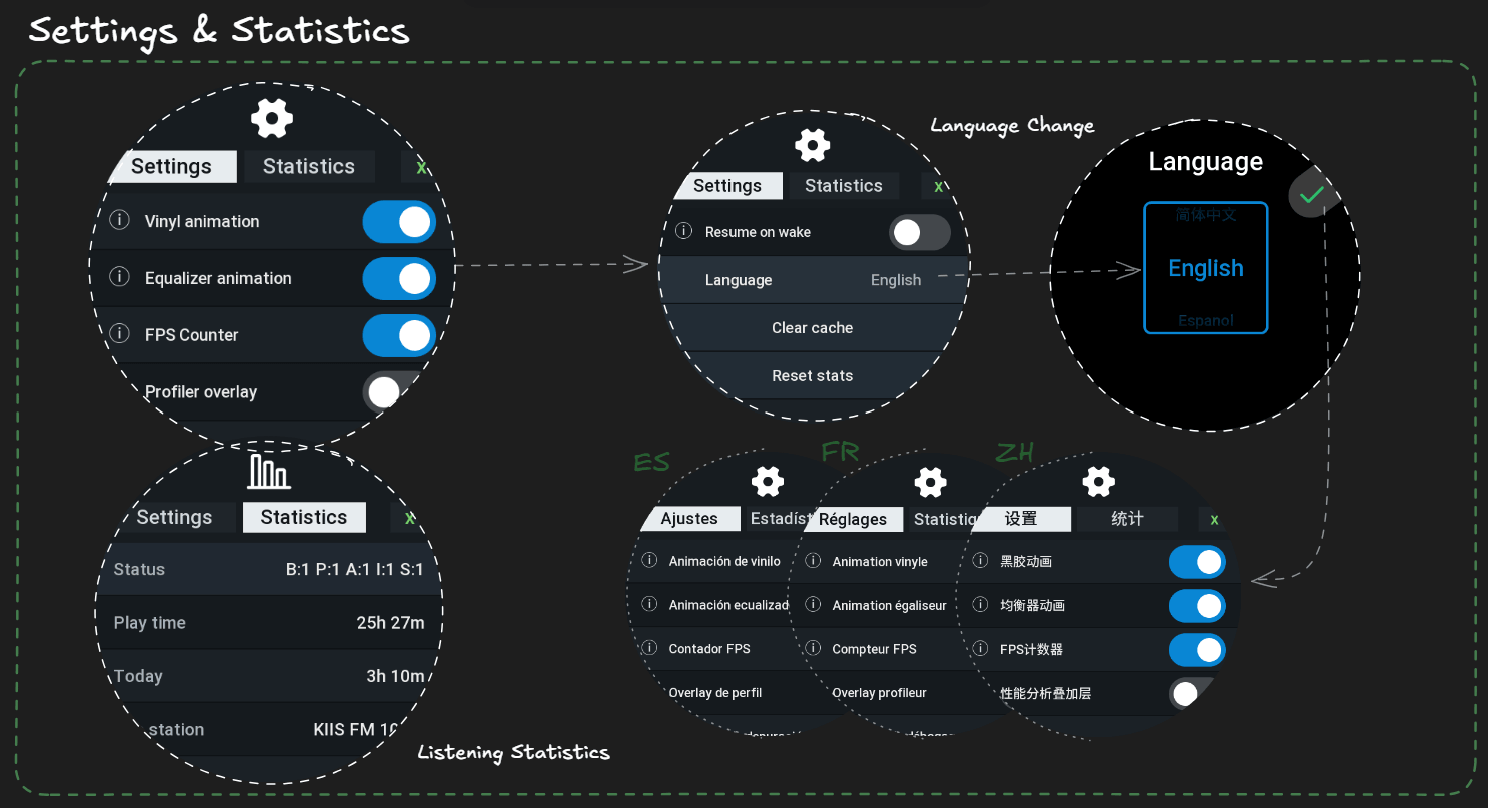
1. You can access the Settings and Statistics tabs by tapping the cogwheel icon in the main interface.
2. The app is translated into multiple languages. You can experiment with different options without changing your watch’s language.
3. In Statistics, you can see your listening stats, which can be reset from the Settings in case you want to start from scratch.
4. You can tap the ⓘ symbol to learn more about the feature.
The app features four ways to manipulate the volume depending on your device.
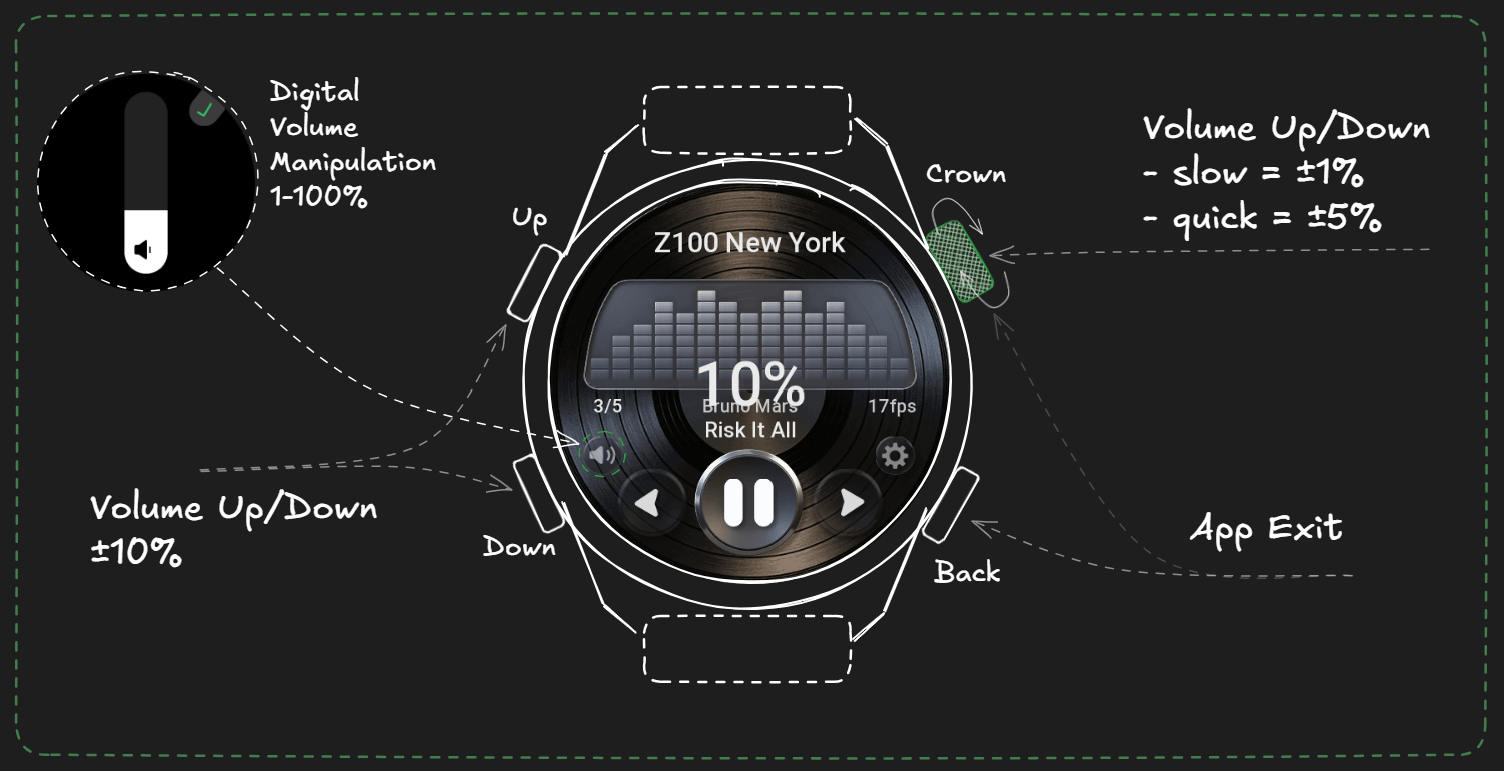
1. The simplest way to modify volume is to click on the UI speaker button on the left. This will open the volume rocker, where you can set the desired volume.
2. If your watch has an analogue crown, you can rotate it to increase or decrease volume by 1% when rotated slowly and by 5% with faster rotations.
3. If your device has Up/Down buttons, you can use them to change the volume up or down by 10%.
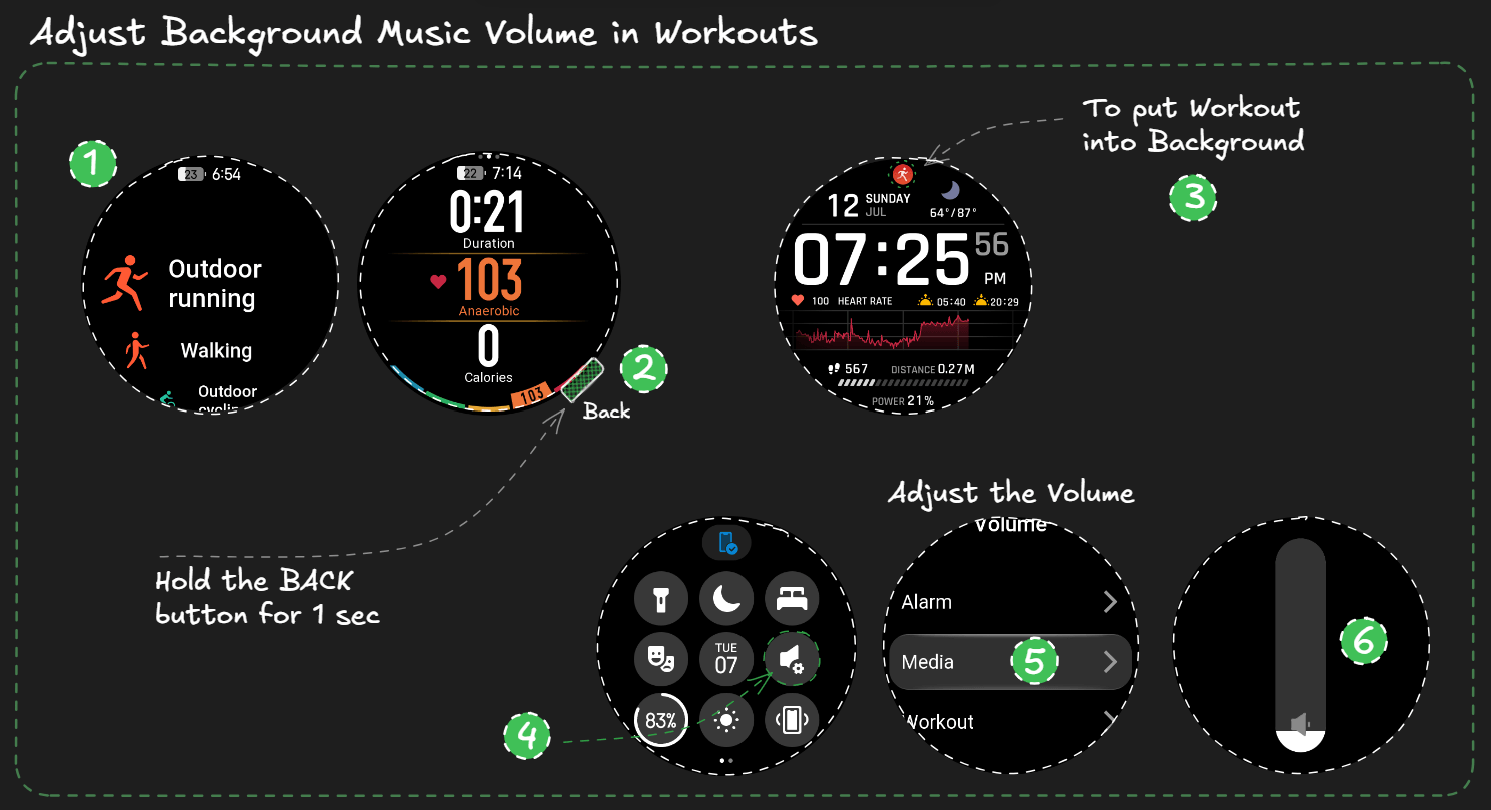
4. Finally, you can use System Volume Rocker > Media to change the volume during the background playback. The infographic will be shown below.
Note: the minimum volume is 1%. This is our platform’s limitation and the way to ensure the app is active.
To play audio in the background, you want to start the playback and exit the app. Upon exiting, you will be prompted to “Keep radio playing after exit?” When confirmed, the playback should resume shortly.
A short setup is required for the very first background playback. Please see the infographic below in order to set it up correctly.
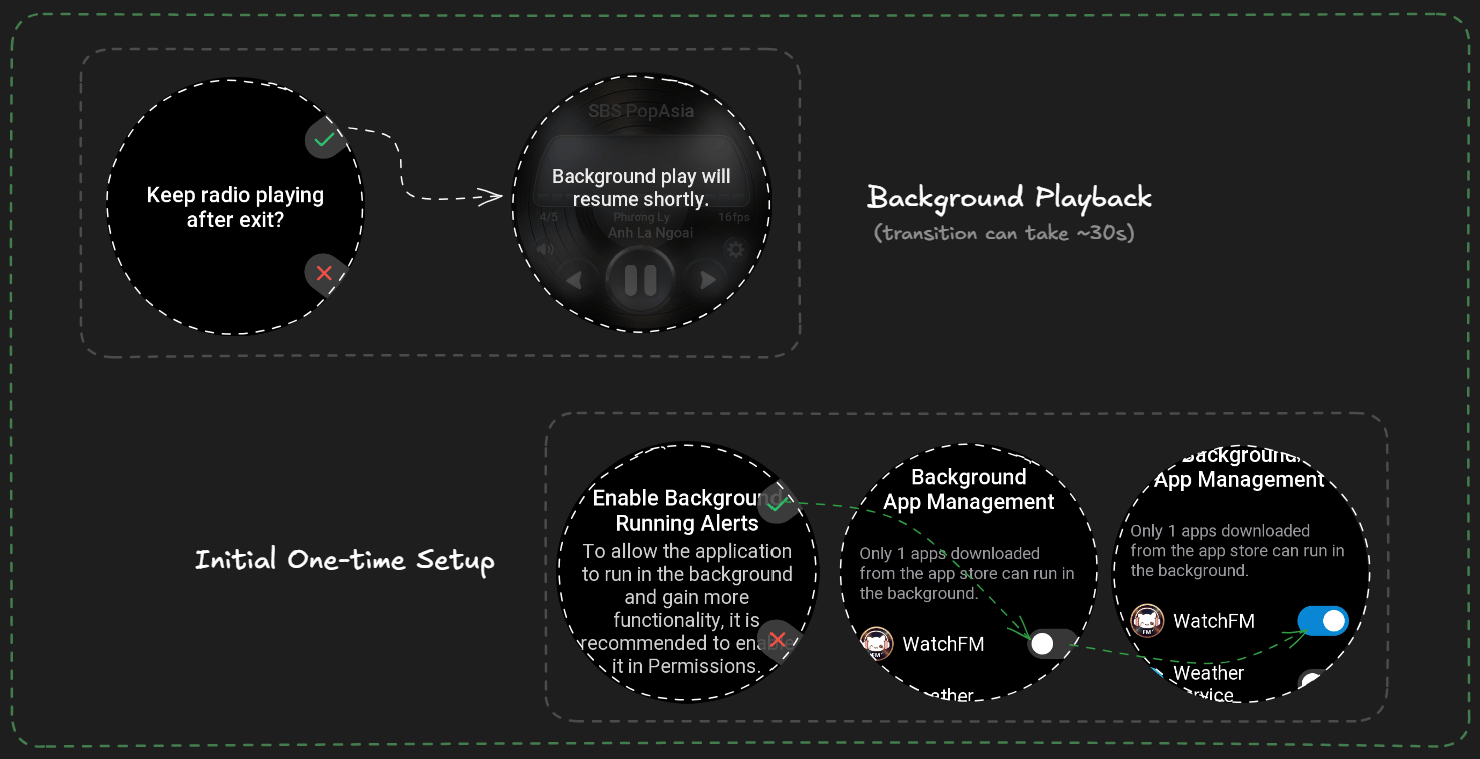
To set up Audio Playback inside your Workouts, follow the Background setup guide from above.
Additionally, keep in mind that you can always modify the music volume while being inside a Workout by holding the BACK button for a second and adjusting the System Volume > Media.
1. Due to the app’s unique interface, currently, it’s only available on Round-shaped watches; support for Rectangular-shaped devices is coming soon
2. The app might not be available in some of the EU stores. Which is something outside of our control
3. The app requires an active connection with your Phone & Zepp app
4. The minimum API required from the watch is 4.0, which should ship with nearly every Amazfit watch running ZeppOS 5.0+
5. The minimum playback volume is 1%
6. The ‘download/save music tracks for later use’ is not supported. This is a streaming app, not a music downloader.
7. A short delay is expected between each chunk transition; a small price to pay for such functionality, and it is expected to improve with the evolution of ZeppOS
If you find a bug or have a suggestion, you can share it with us in our official discord group. Until then, enjoy the music!